 Admin
Admin
Cinema HD APK is one of the most popular streaming apps for Firestick users, offering a vast library of free movies and TV shows. However, unlike mainstream apps, Cinema HD isn’t available on the Amazon Appstore. Therefore, you’ll need to sideload it manually. This guide provides a step-by-step process on how to safely download, install, and troubleshoot Cinema HD on your Firestick.
What is Cinema HD APK?
Cinema HD APK is an Android application that allows users to stream high-quality movies, TV shows, and videos for free. It aggregates content from various sources, giving users access to a wide variety of media without the need for a subscription. With the help of a few additional tools, such as the Downloader app, you can easily install Cinema HD APK on your Firestick.
Cinema HD offers HD streaming and multiple source options for playback, making it a highly sought-after app for cord-cutters and Firestick owners. The app is continuously updated, ensuring a steady flow of new content to watch.
Why Use Cinema HD APK on Firestick?
Firestick is a fantastic platform for streaming, and Cinema HD enhances that experience by providing free access to a wealth of entertainment content. Here are a few reasons why you might want to install Cinema HD on your Firestick:
- Free Streaming: Cinema HD offers a huge range of movies and TV shows without any subscription fees.
- High-Quality Content: It supports HD streaming for crisp and clear visuals.
- Multiple Links for Streaming: Cinema HD aggregates several links for each movie or TV show, giving users the freedom to choose their preferred source.
- User-Friendly Interface: The app is easy to navigate and ideal for Firestick’s remote control functionality.
- Real-Debrid Integration: For faster and smoother streaming, you can integrate a Real-Debrid account, which improves link quality.
How to Download Cinema HD APK on Firestick: Step-by-Step Guide
Step 1: Enable Apps from Unknown Sources
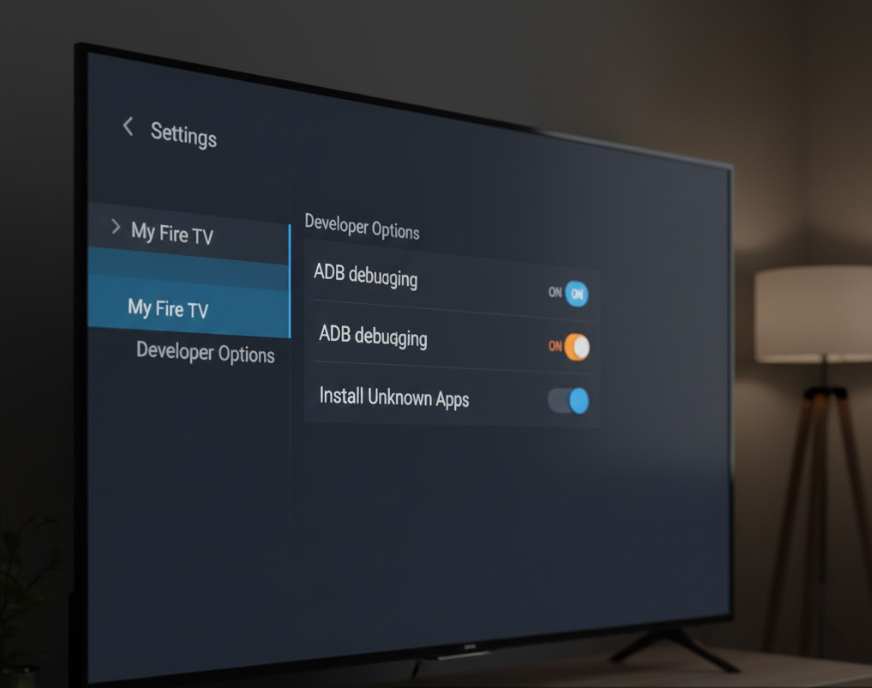
Before you can install third-party apps like Cinema HD APK, you need to enable sideloading on your Firestick. Here’s how to do it:
- From the Firestick home screen, go to Settings.
- Select My Fire TV and then Developer Options.
- Turn on the option that says Install Unknown Apps.
- Locate Downloader in the list of apps and toggle the switch to ON.
Enabling these settings will allow you to install apps from outside the Amazon Appstore, including Cinema HD APK.
Step 2: Install the Downloader App on Your Firestick
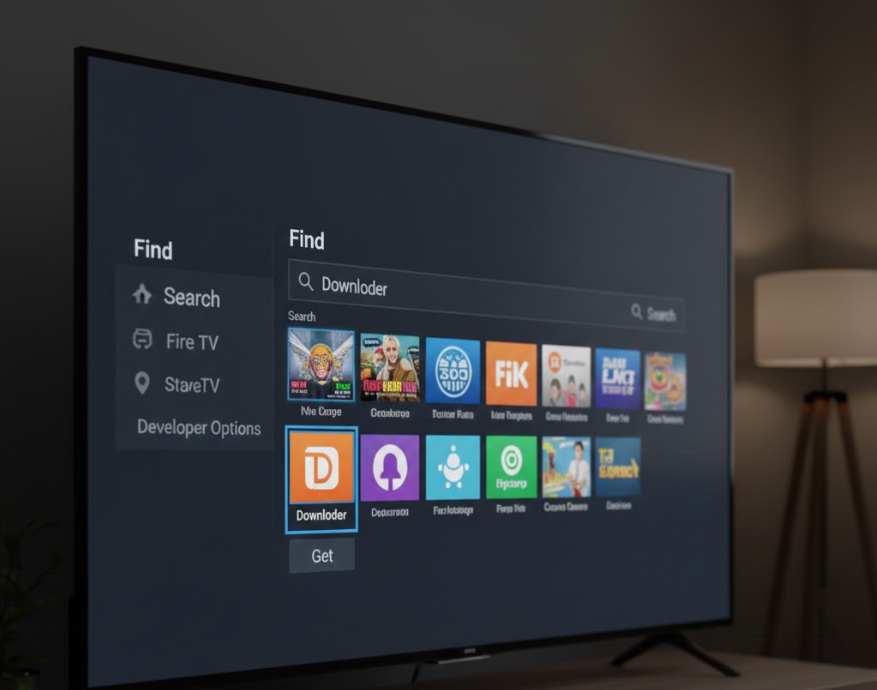
The Downloader app allows you to download APK files directly onto your Firestick. Here’s how to install it:
- From the Firestick home screen, select Find > Search.
- Type in Downloader and select it from the search results.
- Click Get or Download to install the app.
Once the Downloader app is installed, open it, and you’re ready to proceed with the next steps.
Step 3: Download the Cinema HD APK
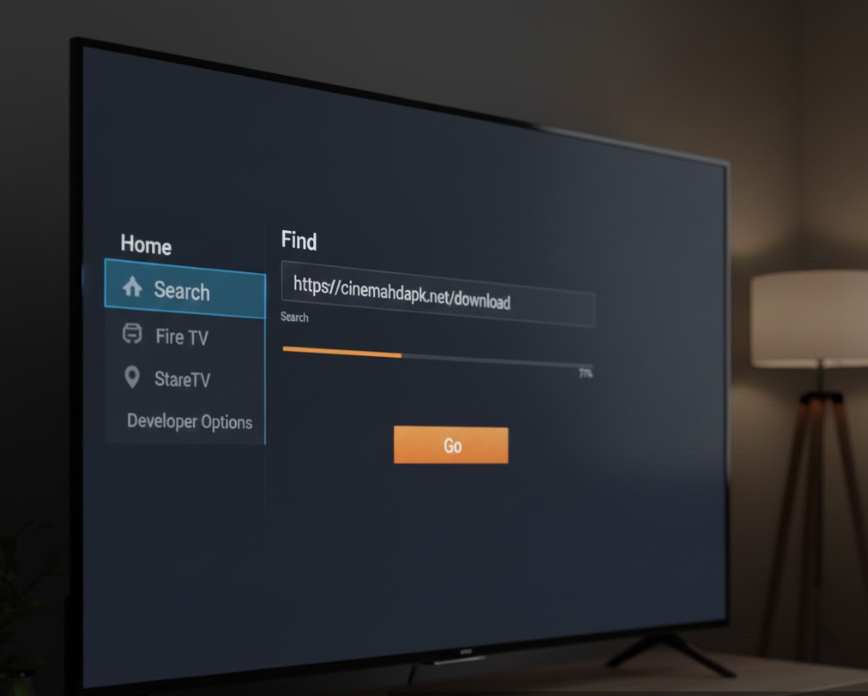
Now that you have the Downloader app installed, it’s time to download the Cinema HD APK:
- Open the Downloader app.
- In the URL field on the home tab, type the verified Cinema HD APK download link (make sure you’re using a trusted source).
- Press Go to initiate the download.
- Wait for the APK file to finish downloading. It may take a few minutes depending on your internet connection speed.
Once the download is complete, the installation prompt will appear.
Step 4: Install the Cinema HD APK
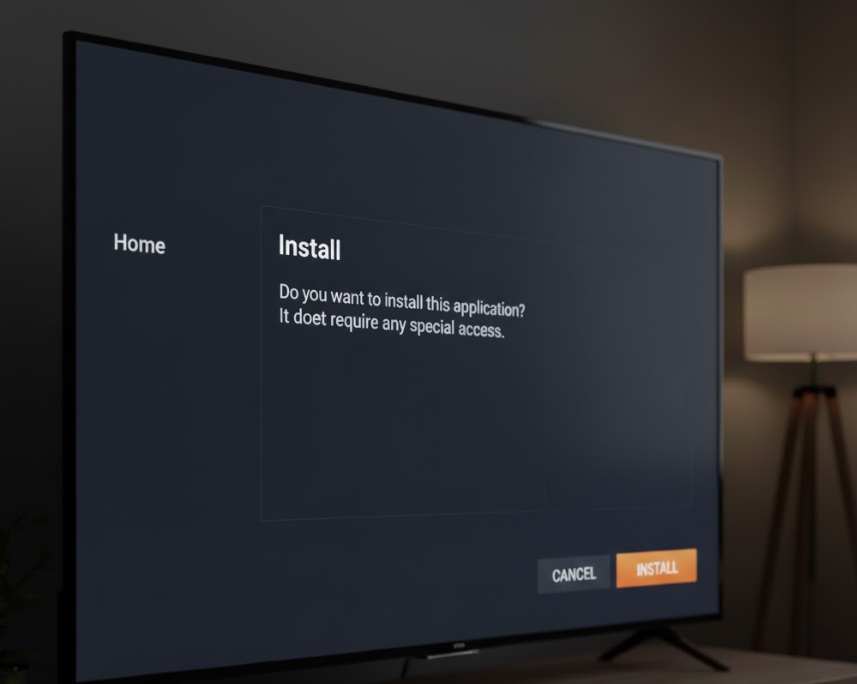
Once the APK file is downloaded, you will need to install it:
- When the installation prompt appears, select Install.
- Wait for the installation process to complete. This may take a few moments.
- After installation, click Done to finish.
You will now have Cinema HD installed on your Firestick. To save space, you can choose to delete the APK file from the Downloader app after installation.
Step 5: Launch Cinema HD APK
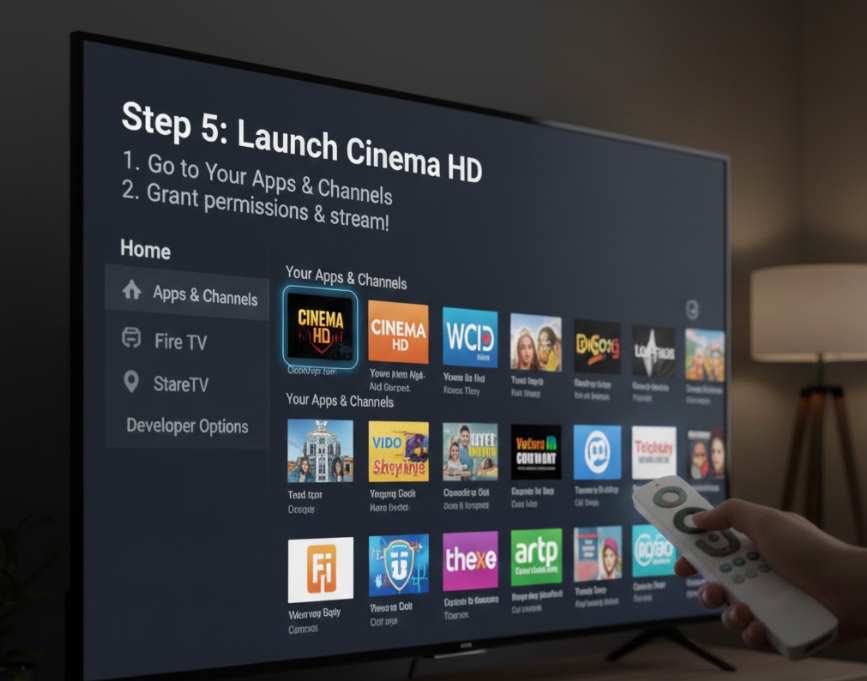
To access Cinema HD, follow these steps:
- From the Firestick home screen, go to Your Apps & Channels.
- Select See All and locate Cinema HD.
- Highlight the app, press the Menu button on your remote, and select Move to Front to add it to your home screen for easy access.
Once launched, the app will ask for necessary permissions. Grant these permissions, and you’ll be ready to browse and stream content!
Troubleshooting Common Problems with Cinema HD APK
While Cinema HD is an excellent app, you may occasionally run into some issues. Here are some common problems and solutions:
1. Parsing Error or App Not Installed
This typically occurs when the APK file is outdated or corrupted. To fix this:
- Re-download the APK from a trusted source.
- Ensure you are using the latest version of Cinema HD.
2. Cinema HD Keeps Buffering
If you experience frequent buffering:
- Clear the app’s cache by going to Settings > Applications > Manage Installed Applications > Cinema HD > Clear Cache.
- Try lowering the stream quality in the app settings.
- Consider using a Real-Debrid account for better streaming quality.
3. No Links Found
If Cinema HD shows no playable links:
- Go to the app’s settings and refresh the providers.
- Clear the app data by going to Settings > Applications > Manage Installed Applications > Cinema HD > Clear Data.
How to Optimize Cinema HD for Better Streaming Performance
To get the best experience with Cinema HD on Firestick, follow these tips:
1. Clear Cache and Data Regularly
Regularly clear cache and data for Cinema HD to keep the app running smoothly.
2. Uninstall Unused Apps
Free up storage space by uninstalling apps you no longer use. This can help Cinema HD perform better.
3. Restart Your Firestick Weekly
Rebooting your Firestick every week can help maintain its performance and reduce potential issues.
4. Use a 5 GHz Wi-Fi Network
For smoother playback, connect your Firestick to a 5 GHz Wi-Fi network rather than 2.4 GHz. The 5 GHz network is faster and less congested, offering a better streaming experience.
5. Use Real-Debrid for Faster Speeds
Integrating a Real-Debrid account with Cinema HD can provide you with higher-quality links, faster speeds, and fewer buffering issues.
6. Check for Updates Regularly
Cinema HD is updated regularly, bringing new features and bug fixes. Keep the app updated to ensure you get the best performance.
Cinema HD APK Alternatives for Firestick
While Cinema HD is a popular option, there are several other streaming apps that you can install on your Firestick for free movies and TV shows:
- TeaTV: A solid alternative with an easy-to-use interface and HD streaming quality.
- Tubi TV: A legal, free streaming app offering a large catalog of movies and shows.
- Kodi: A media center app that can be customized with various add-ons to stream movies and TV shows.
- Popcorn Time: Offers HD streaming for movies and TV shows with torrents.
- Stremio: Another media center with a growing collection of free content from multiple sources.
FAQs About Cinema HD APK on Firestick
Is Cinema HD APK Free to Use?
Yes, Cinema HD APK is completely free to use. However, it includes ads, and you can enhance the experience by integrating services like Real-Debrid for smoother streaming.
Do I Need a VPN for Using Cinema HD APK?
While a VPN is not mandatory, using one can enhance privacy, improve security, and allow you to bypass region-based restrictions on some streams.
Can Cinema HD Be Installed on Older Firestick Models?
Yes, the same installation process applies to older Firestick models. However, performance may be slower on these devices, so it’s important to manage storage and clear cache regularly.
How Do I Remove Cinema HD from Firestick?
To uninstall Cinema HD, go to Settings > Applications > Manage Installed Applications > Cinema HD and select Uninstall.
Conclusion
Cinema HD APK is an excellent streaming app that provides access to a wide variety of movies and TV shows for free. While it’s not available on the Amazon Appstore, you can easily install it on your Firestick using the Downloader app and a few simple steps. By following this guide, you can enjoy high-quality entertainment on your Firestick in no time.
Remember to keep your app updated, clear cache regularly, and use a VPN for added security. With these steps, Cinema HD can become your go-to streaming app for endless movie nights and TV show binges.
For More Update Visit: Fortunes